How to remove audio from a video on iPhone
Last updated:
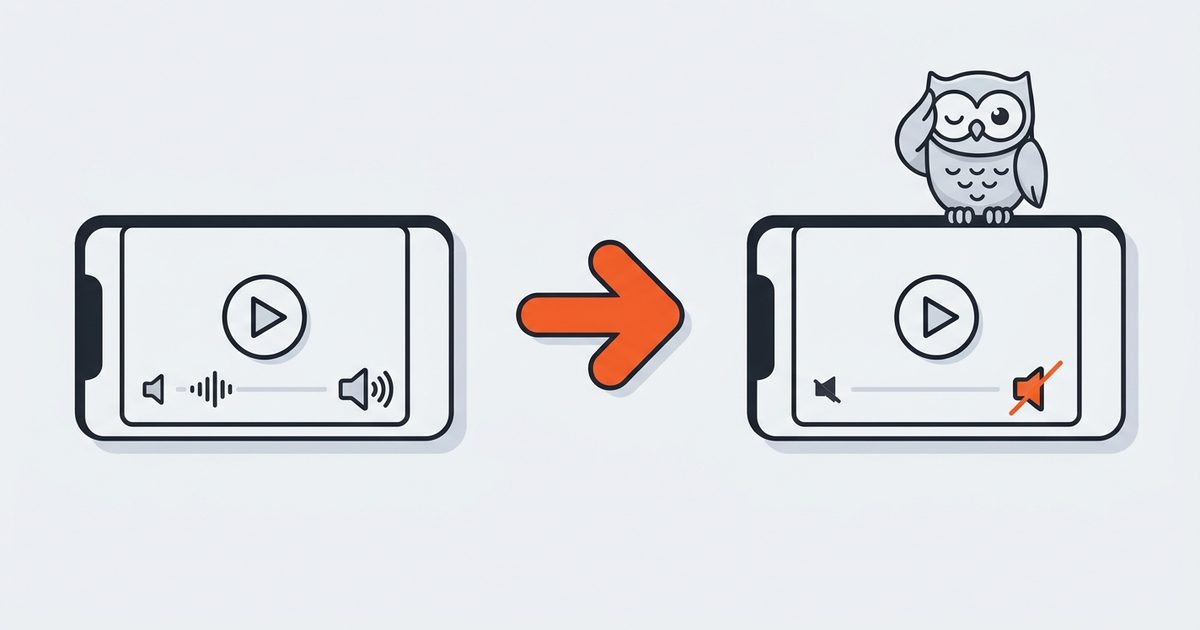
To remove audio from a video on iPhone, open the video in Photos, tap Edit, tap the speaker icon at the top left so it shows a line through it, then tap Done. The video is now silent; tap Edit → Revert to get the sound back. To keep the original and get a separate silent copy, use VidFinch Remove Audio in Safari instead.
Method 1: the Photos app (built in)
- Open the Photos app and open the video.
- Tap Edit.
- Tap the speaker icon at the top left of the screen. It shows a line through it when the sound is off.
- Tap Done. The video now plays without sound everywhere you share it from Photos.
This edits the video itself. Your iPhone keeps the original, so you can get the sound back at any time with Edit → Revert.
Method 2: a silent copy with VidFinch (keeps the original)
Use this when you want both versions, or need a silent file to send or upload.
- Open Safari and go to vidfinch.com/remove-audio-from-video.
- Tap Choose a video, then Photo Library, and pick your video.
- Tap Remove audio. It takes about a second because the picture is copied, not re-encoded.
- Tap Download video. The silent copy is saved in Files → Downloads; open it and tap Share → Save Video to add it to Photos.
Method 3: mute only one part (iMovie)
Photos and VidFinch remove all the sound. To mute only a few seconds, open the free iMovie app, start a Movie project with your video, tap the clip in the timeline, use Split to cut out the part, then tap the volume icon and turn that part down to zero. Export the movie with Share → Save Video.
Which method to pick
| You want to… | Best method | Keeps the original? |
|---|---|---|
| Quickly mute a video before sharing it | Photos app | Yes (Edit → Revert) |
| Get a separate silent file | VidFinch Remove Audio | Yes, untouched |
| Mute only one part | iMovie | Yes |
| Replace the sound with music | iMovie or CapCut | Yes |
Good to know
- Live Photos have their own sound button: open the photo, tap Edit, then the Live icon, and tap the speaker icon at the top.
- Want the sound instead of the picture? Use Video to MP3 to keep the audio as an MP3.
- Removing the sound does not lower the picture quality with either method.
Questions
Can I remove the sound from a video on iPhone without an app?
Yes. In Photos, tap Edit, tap the speaker icon at the top left and tap Done. Or use VidFinch Remove Audio in Safari for a separate silent copy.
How do I get the sound back?
In Photos, open the video, tap Edit, then Revert. The original sound returns.
Does muting a video make the file smaller?
A little, because the sound track is gone. To make a video much smaller, use our Video Compressor.
Is my video uploaded when I use VidFinch?
No. The sound is removed inside Safari on your iPhone.
Other downloaders
- Remove Audio from Video
- Twitter (X) Video Downloader
- Threads Video Downloader
- Pinterest Video Downloader
- Bluesky Video Downloader
- LinkedIn Video Downloader
- Snapchat Spotlight Downloader
- How to make a GIF from a video
- How to save a GIF from Twitter (X)
- How to make a GIF from a video on iPhone
- How to convert a video to MP3 on iPhone
- How to turn a GIF into a video
- How to compress a video for Discord
- How to compress a video on iPhone
- How to trim a video
- How to crop a video to 9:16 (vertical)
- How to add blurred sides to a vertical video
- How to download a video from LinkedIn
- How to compress a video for email
- Supported platforms, formats and limits